Key Takeaways
- Amazon S3 durability helps protect against infrastructure failures, but additional backup protection is needed for accidental deletion, misconfiguration, compromised credentials, and data corruption.
- Clumio helps protect S3 data with continuously updated, immutable, air-gapped copies that remain available even if the source AWS account is compromised.
- Protection groups and policies let you define which S3 buckets and objects are protected, along with backup frequency, retention, storage tier, and recovery options.
- Clumio Backtrack helps provide point-in-time rollback for versioned S3 buckets, while SecureVault supports object-, prefix-, and bucket-level recovery from immutable backups.
- Testing restores before an incident helps teams become familiar with the recovery process and respond more quickly when data is lost or corrupted.
Amazon S3 is designed for 99.999999999% (11 nines) of data durability. Meaning that S3 objects should remain recoverable even if hardware or infrastructure components fail.
However, durability will only take you so far.
It doesn’t help if a file is accidentally deleted, a lifecycle rule is misconfigured, an identity and access management (IAM) credential is compromised, or someone runs a batch delete against the wrong S3 prefix.
In this post, I’ll walk through how Clumio protects Amazon S3 data and, more specifically, how to recover deleted or corrupted files after an incident. I’ll cover setting up a protection group and backup policy, as well as finding and restoring specific objects using the backup calendar, and performing point-in-time recovery using Clumio Backtrack.
How Clumio Protects S3 Data
Clumio is a SaaS-based, agentless backup service for AWS. For S3 specifically, rather than taking periodic snapshots of a bucket, it instead reads change events (object creations, updates, and deletions) and keeps a continuously updated, air-gapped, immutable copy of your data. This is what makes it possible to recover cleanly even if the source account itself has been compromised.
Everything Starts with a Protection Group
A protection group is a named collection of one or more S3 buckets. Buckets can be grouped based on tags, prefixes, storage classes, or manually selected. A policy is then attached to the protection group, and it’s the policy that defines the backup mechanisms that will apply to the group.
Creating a Protection Group
1) To create a protection group, click Protect, Protection groups, S3 protection groups.
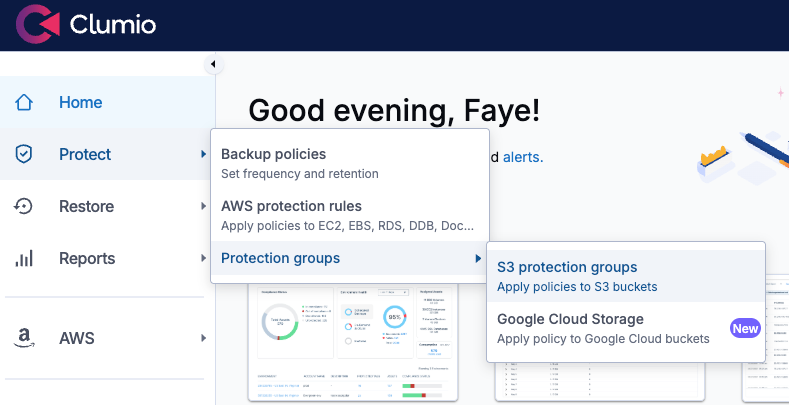
Creating an S3 protection group
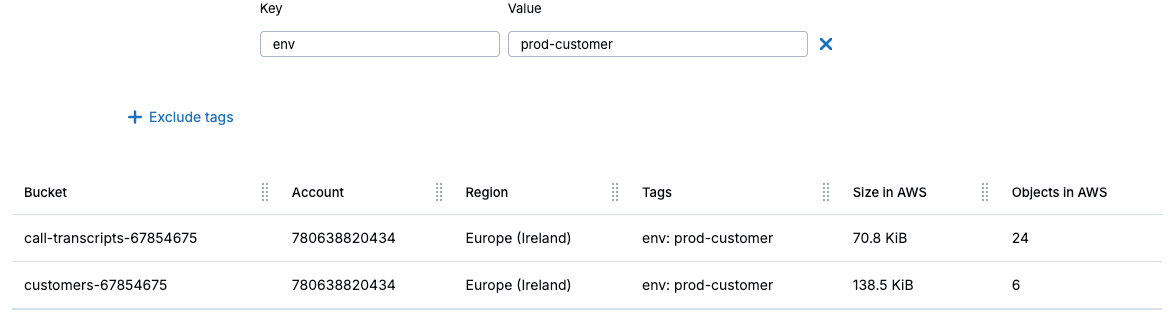
2) Then click Create protection group, and give it a name that reflects the workload, like prod-customer-data. Select Automated protection to add buckets by account, region, or tag. This will apply to future buckets that meet the selection criteria as well as what exists today. After that, click Next.
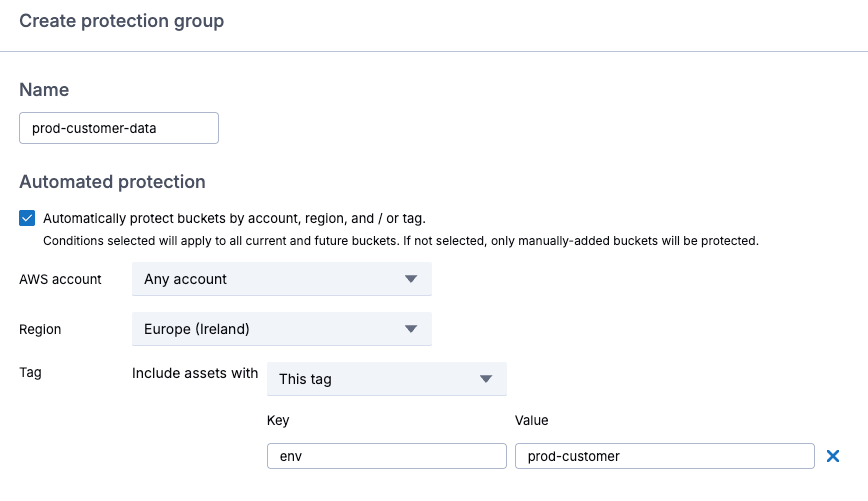
Configuring automated protection
There’s also the option to select buckets manually, and after completing the selection, click Next.
Applying a Policy
The Default Policy performs monthly in-region backups with one-month retention, using SecureVault Standard, which creates a secondary, air-gapped copy of your objects. Restores typically complete in minutes and support instant access.
3) To create your own policy, click Create new policy, name the policy, and select the S3 asset type.
Creating a policy
Configuring Backup Frequency and Retention Settings
4) Click the checkbox to enable SecureVault, and you have the option to configure the backup frequency in terms of the number of days between backups, or select continuous backups, to back up your data at frequent intervals throughout the day. This enables point-in-time recovery for any point in time during the day.
5) Choose Continuous backup, and set the retention for one month.
6) Click the checkbox to enable Backtrack, for point-in-time rollbacks. Note that S3 buckets must be configured with versioning enabled in order for rollbacks to work.
7) Under Additional options, set the backup window to an appropriate time.
8) Backup destination is set to in-region by default. Note that transfer charges will apply if you store backups in a different AWS region.
9) Under SecureVault backup tier, select SecureVault Standard for instant restores. SecureVault Archive is designed for data that will be retained for a long period, and should only be used when you can tolerate a 24- to 48-hour restore time.
10) Click the checkbox to enable Threat Scan, which is a service that scans every backup execution to help flag compromised files and identify safe, uncompromised restore points to prevent environment reinfection. After that, click Add, and Save.
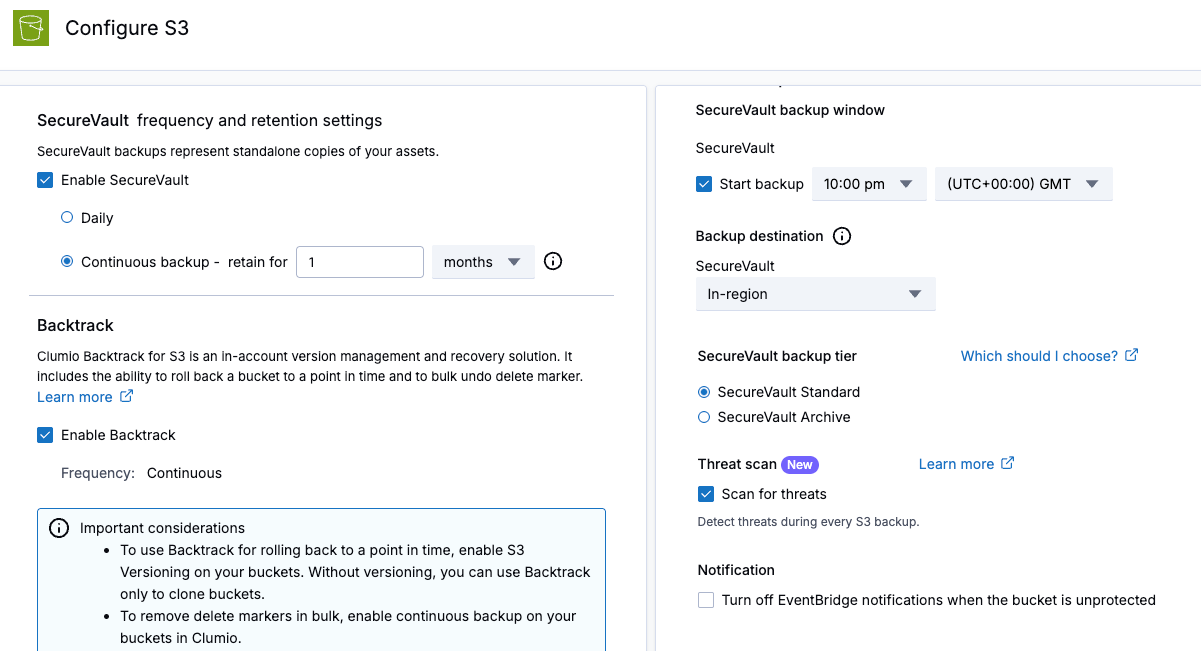
Configuring the policy
11) Check that the new policy is selected for your protection group, then click Next.
12) Under Advanced options, you can choose which S3 storage classes to protect, whether you want all versions of an object or the latest version, include or exclude certain prefixes, or include objects based on their creation date. Then click Next and Create.
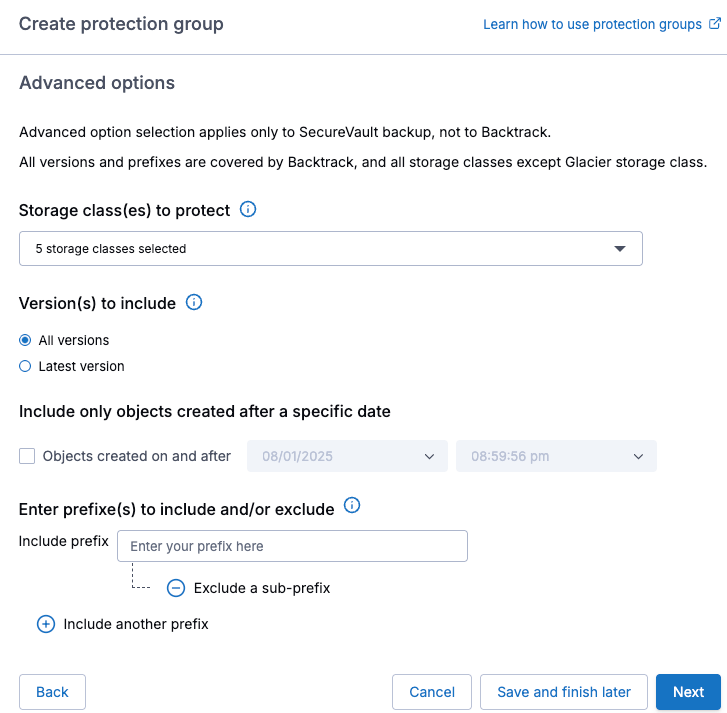
Advanced options
After that the new protection group will appear, and the first backup will be performed during the configured backup window.
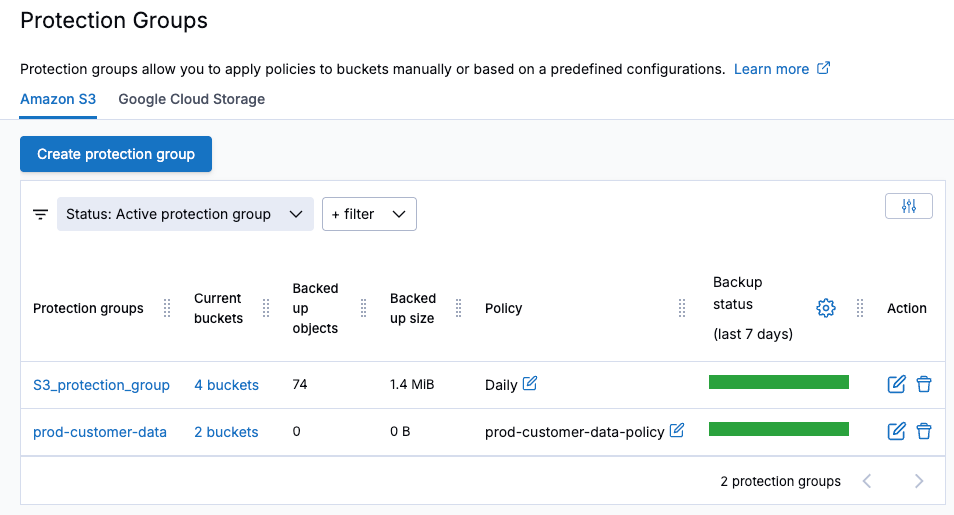
Protection groups view
Verifying Your Backups
1) When you need to perform a restore, due to data being missing or identified as corrupt, navigate to Protection groups, select the relevant S3 protection group to view the available backups and Clumio Backtrack Syncs. A blue dot in the calendar indicates that a successful backup exists for that day.
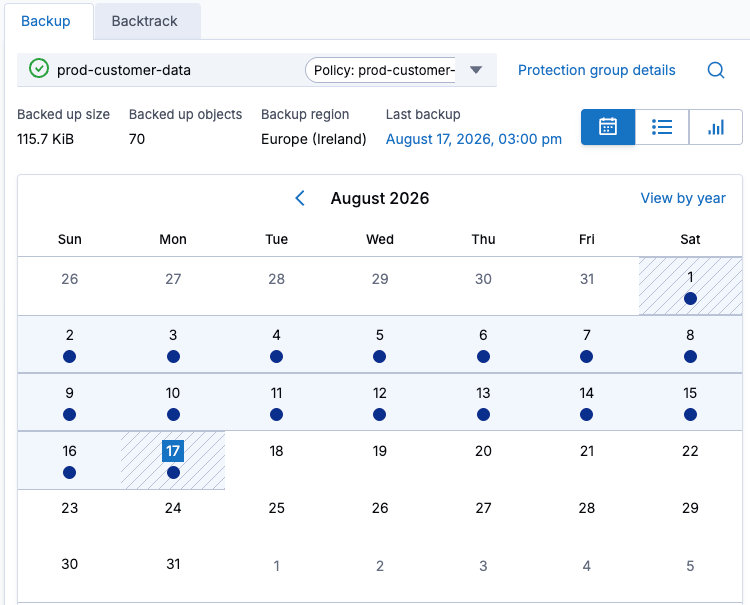
Viewing successful backups
2) View the Backtrack Syncs on a per-bucket basis by selecting the Backtrack tab from inside the protection group, and verify that continuous backup has been functioning correctly.
Backtrack Syncs available for point-in-time restore
Restoring Data
In this example, I have some missing call transcripts. Each missing file has the prefix of transcript. I also have a file that is corrupted, named customers.csv. Luckily, I have a full backup as well as multiple point-in-time Backtrack Syncs to restore from.
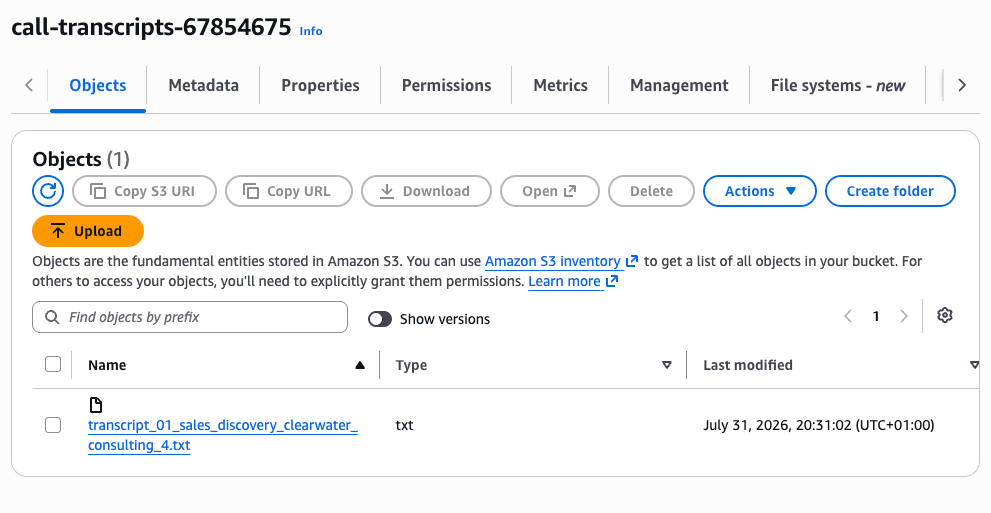
S3 shows only a single call transcript; the rest have been deleted accidentally.
1) From the Restore menu, select S3 buckets, and select the bucket that has missing files; then from the Backtrack dropdown, select Roll back.
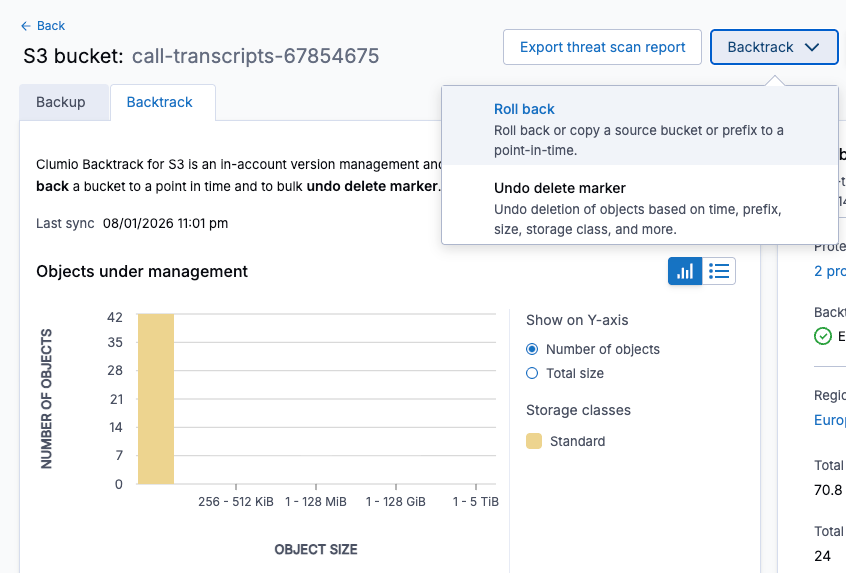
Using Backtrack to roll back to a point-in-time
2) Select the bucket to roll back, choose the date and time, and then filter based on object key, size or S3 storage class. After that, click Preview to view the files available to roll back.
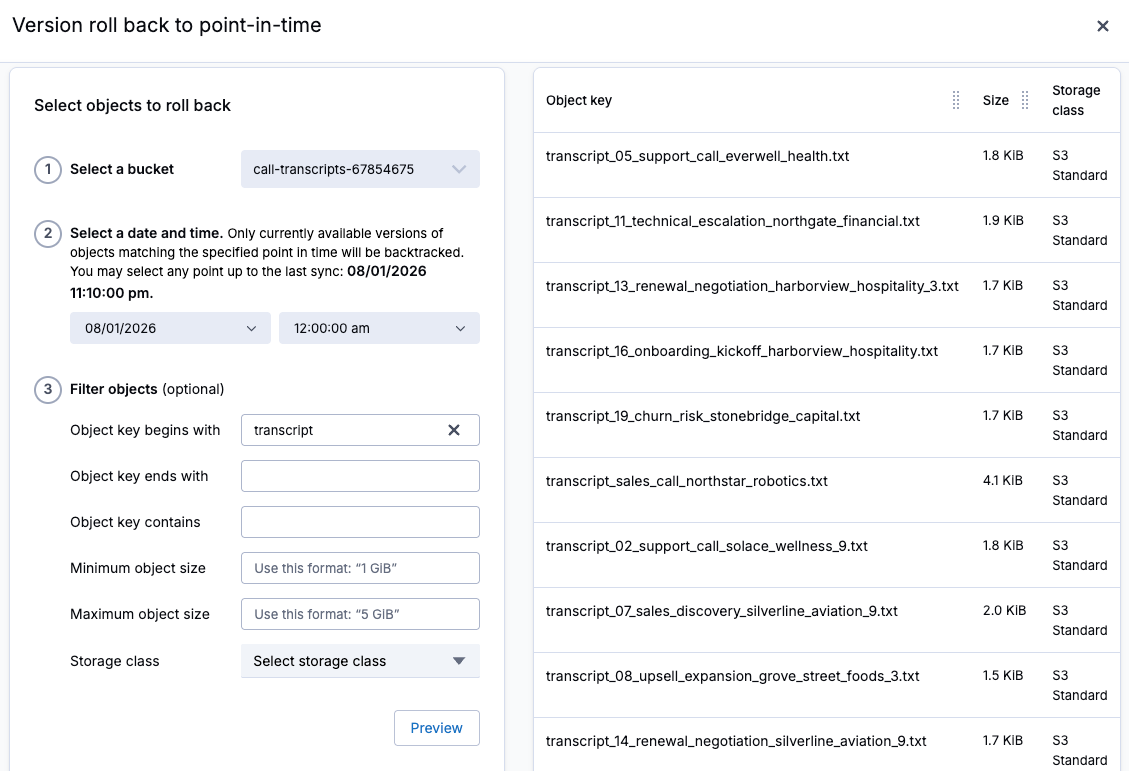
Selecting files to roll back to a point in time
3) Choose to roll back to the same source bucket, or specify a different bucket to roll back to. Then, click Copy to begin the rollback job.
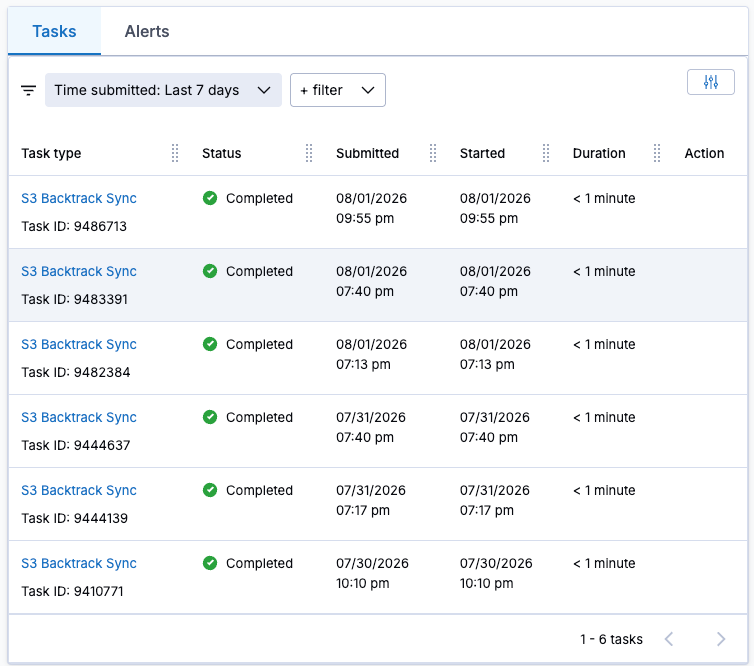
4) View the progress of the rollback in the Tasks menu.
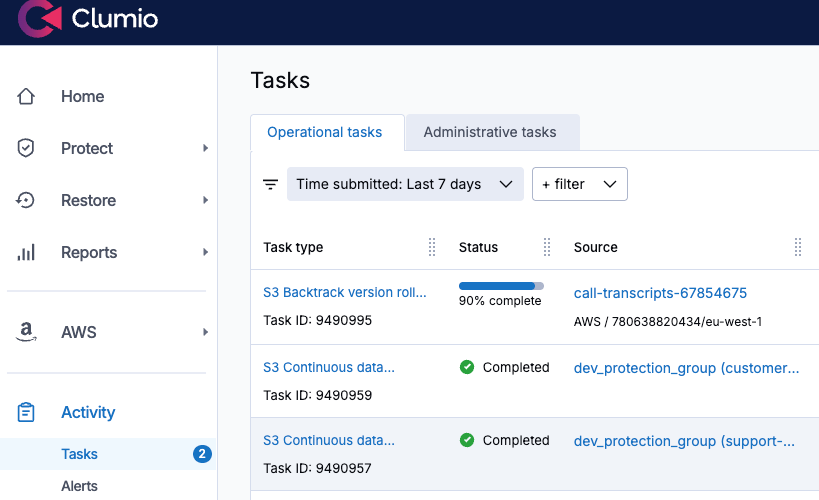
Viewing rollback progress
5) Next, to restore the corrupted customers.csv file, I’ll click on the previous night’s backup in the backup calendar, then select Restore. There’s a choice to instantly access a read-only copy, restore the object or restore multiple files based on bucket name or prefix. 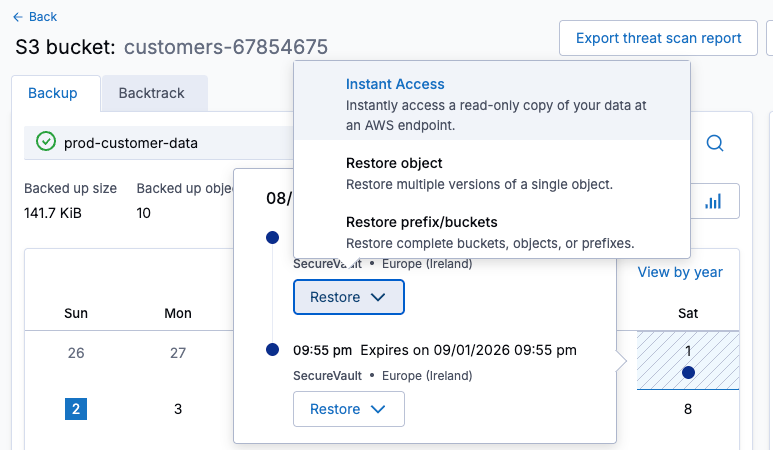
Restoring from backup
6) Select Restore object, then search and select the object to restore, and click Next.
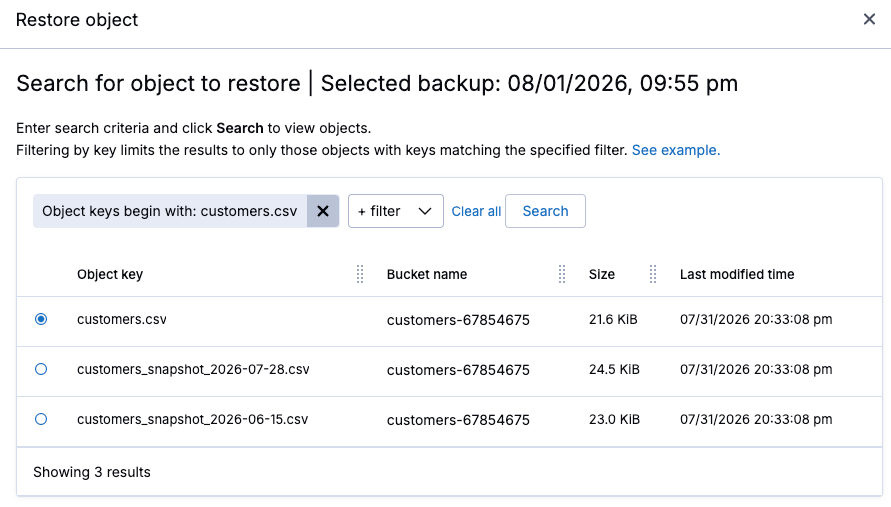
Selecting a single object to restore
7) Select the version to restore, and click Next.
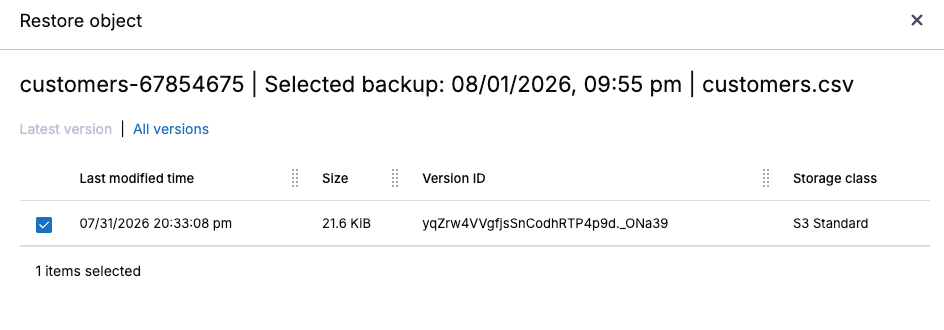
Selecting a version to restore
8) Choose which AWS account, region, and bucket to restore to, and then begin the restore.
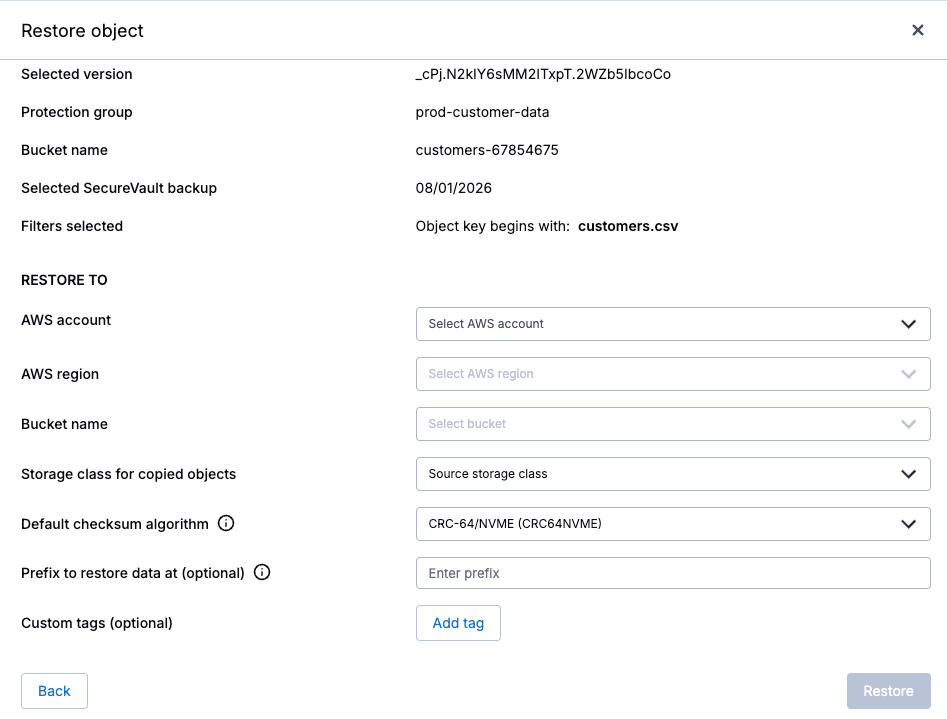
Set the destination before beginning the restore.
9) After the restore shows as successfully completed, the restored file should be available in S3.
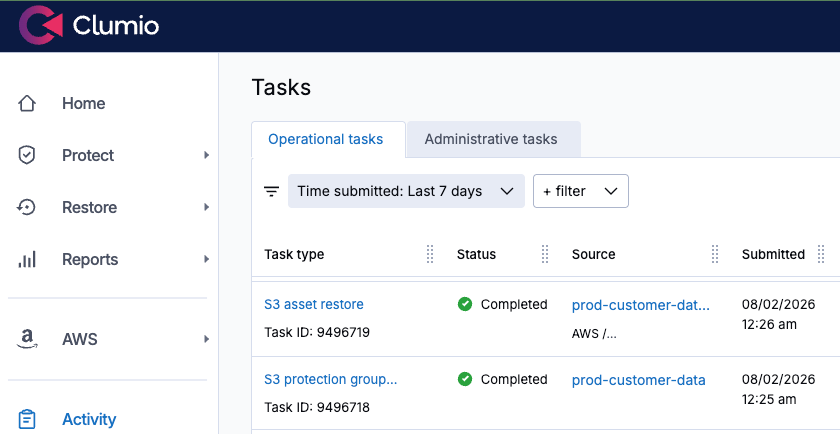
The object is restored.
My Recommendation: Don’t Wait for an Incident
With a protection group and policy in place, Clumio helps provide more than one way back from an S3 incident: Backtrack for near-instant, in-place, point-in-time rollback on versioned buckets, and SecureVault for restoring data from an immutable, air-gapped backup.
Both help support recovery at object, prefix, and bucket granularity, allowing you to choose the recovery approach that best fits the incident. And in both cases, recovery comes down to a few clicks rather than having to manually review multiple S3 versions.
Finally, the best time to test this is before you actually need it. Set up a protection group on your critical S3 buckets today, and run practice restores until they become second nature. The next time something disappears, you’ll already know exactly how to get it back.
To get started today, request a demo or two-week free trial.
FAQs
Q: Why do Amazon S3 buckets need backup if S3 provides 11 nines of durability?
A: S3 durability is designed to protect data against hardware and infrastructure failures, but it does not prevent logical data loss. Accidental deletions, misconfigured lifecycle rules, compromised IAM credentials, and unintended batch operations can still result in lost or corrupted data.
Q: How does Clumio protect Amazon S3 data?
A: Clumio uses S3 change events to help maintain a continuously updated, immutable, air-gapped copy of protected data. This approach helps provide an independent recovery path even when the source AWS account or data has been compromised.
Q: What is an S3 protection group in Clumio?
A: A protection group is a named collection of one or more S3 buckets that share a protection policy. Buckets can be selected manually or automatically based on criteria such as AWS account, region, tags, prefixes, or storage classes.
Q: What is the difference between Clumio Backtrack and SecureVault?
A: Backtrack helps provide point-in-time rollback for S3 buckets with versioning enabled, making it useful for quickly reversing unwanted changes. SecureVault helps maintain an immutable, air-gapped backup that can be used to restore individual objects, prefixes, or larger sets of data.
Q: What is the difference between SecureVault Standard and SecureVault Archive?
A: SecureVault Standard is designed for faster recovery and helps support instant access to protected data. SecureVault Archive is intended for longer-term retention and is better suited to data for which a 24- to 48-hour restore time is acceptable.
Q: How can teams prepare for an S3 data recovery incident?
A: Configure protection groups and appropriate backup policies for critical S3 buckets before an incident occurs. Regularly test object restores and point-in-time rollbacks so the recovery process is familiar when production data needs to be recovered.
Faye Ellis is Principal Training Architect – AWS at Pluralsight.